


UK VMUG session give aways
On 21st (this week) I’m running my popular session on developing vSphere/vCloud .Net Apps for novice programmers. My pals over at LiquidwareLabs have offered to give me 50 USB keys with instructions to get a FREE single host copy of Flex-IO. I had the pleasure of testing the beta and in a nutshell Flex-IO allows you to create a vSphere datastore that is backed up by 16GB memory from the host. The results is >25,000 IOPs for VMs running on that datastore….

So to grab a free copy better get to my session.
vCD LDAP Setting to enable vCAC Blueprint provisioning
So this week I finally got around to gluing my vCAC deployment with my vCloud in my home lab. I create a blueprint which is based on a VCD template for deploying a DC and an Exchange 2003 vApp. I have been on the vCAC 5.2 training course but I found it easier to follow the install guide from Jad El-Zein at http://www.virtualjad.com/ … Just to follow on from the install guide to glue vCAC and vCD I had to define the AD LDAP settings in the vCD organisation for where users who have access to the provision the blueprint. OK for sure that is obvious but makes for a nice blog post. When I say glue vCAC to vCD I’m actually referring to enable the provisioning of vCloud vApps through a vCAC blueprint.
So without configuring the LDAP setting in the respective organisations you will get the following error found in the vCAC Log View when you try to deploy your Blueprint:

vCAC error
To configure this you first have to login into vCloud Director as either admin at the provider level and then open the relevant origination construct or an admin of the organisation. Next Click on Administration then the LDAP menu item under Settings. In the LDAP dialog window select the Custom LDAP service then click on the Custom LDAP tab.
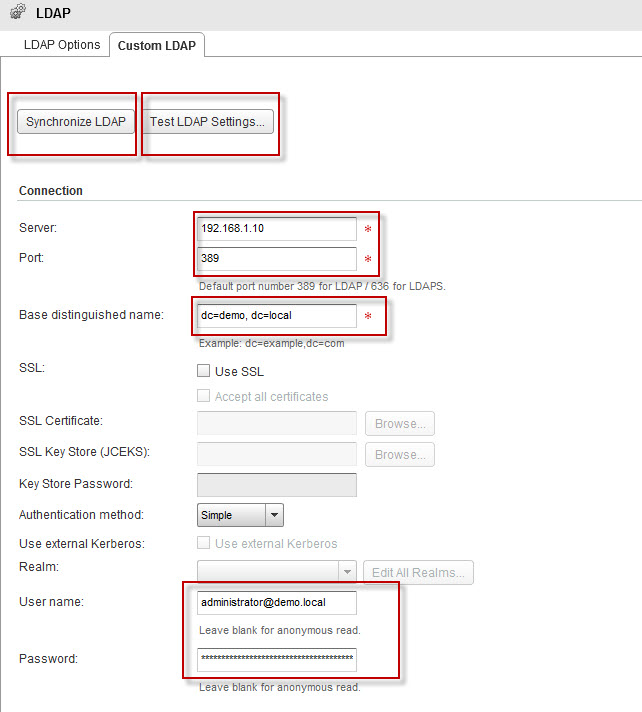
Custom LDAP
For me I only had to define the server address, the base distinguished name, user and password as per the above picture.
Click on Synchronise LDAP and after a few minutes click on the Test LDAP Settings

Test LDAP
In this dialog window search of a user that has rights to your vCAC blueprint and click TEST
You should see that AD data about this user if your LDAP settings are correct.
Next we have to add a user account into the vCD org that has permissions to deploy the vCAC blueprint.
Back in the vCD organisation Administration click on Users menu item under Members and click the import users icon

Import Users
In the Import Users dialog search for the user that has access to the vCAC blueprint, select the user and click the Add button.

Add user
Now when you try to deploy your vCAC blueprint it should work just fine.
My VMworld Session “Tips for Developing VMware Apps for Novices Programmers”
Thanks for supporting my VMworld session because it paid off. I’ve been invited to deliver my session at VMworld Europe in Barcelona Oct 15-17. My session is “Tips for Developing VMware Apps for Novices Programmers” and I finally started to appreciate that these skills could be useful in day-2-day devops. Help in aligning your business processes to running IT as a Service in a SDDC is for sure they way forward. Or maybe you just need a jump start to make a cool nerdy tool for your own amusement, either way come and check me out and see how I got started with all this. You can find more details and register for this session by clicking HERE